1. Getting Started
The following sections will help you get started using CanCurve. We suggest reading these sections first.
1.1. Installation
To install CanCurve, you first need to install QGIS, then you can install CanCurve from the Plugin Repository. For detailed instructions, refer to the project README. For best performance, ensure you have the specified version of QGIS installed.
After installation of the plugin, the  icon should appear on your plugins toolbar.
If you don’t see the icon, first ensure the plugin is checked on the Installed tab of the “Manage and Install Plugins..” dialog, then ensure the plugins toolbar is enabled by right-clicking the QGIS toolbar.
icon should appear on your plugins toolbar.
If you don’t see the icon, first ensure the plugin is checked on the Installed tab of the “Manage and Install Plugins..” dialog, then ensure the plugins toolbar is enabled by right-clicking the QGIS toolbar.
1.2. Overviews
CanCurve is a collection of tools for generating Depth Damage Functions (DDF) used by platforms like CanFlood to create flood risk models. CanCurve’s Buildings Tool for example facilitates the creation of DDFs from detailed restoration cost data for archetypal buildings. This tool joins a table of user-supplied restoration activities (e.g., repair dry-wall for $1000), called the Cost-Item Table, to a database of information on the flood vulnerability of those items, called the Depth-Replacement-Factor (DRF) Database. After identifying the target building or archetype for which a user would like to construct a DDF, typically a Cost-Item Table is prepared using local pricing tables and expert knowledge on the restoration of the building. For the DRF Database, either the version shipped with CanCurve can be used (default), or an alternate file can be specified. Metadata fields are avaialble to better contextualize the DDF, but these do not alter the function. Once these inputs and the building metadata are prepared and entered into the Buildings Tool, the four Curve Creation steps can be run to create and export a DDF in CanFlood format.
1.3. Quick-Start
To start working with CanCurve, click the to open the Buildings Tool dialog.
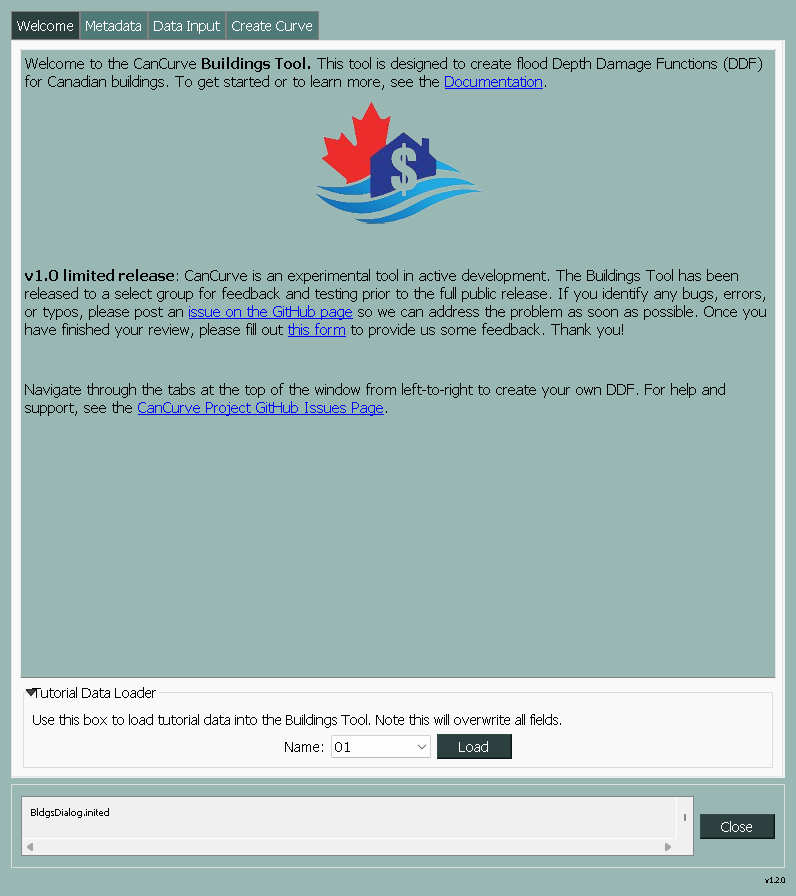
Figure 1.1 Welcome tab of the Buildings Tool.
To use the tool to create a DDF from data for your archetypal building, first populate the Metadata tab with whatever information is available (see the Tutorials section for example data). Note only fields marked with an asterisk (*) are required, but the more information you provide, the more complete your DDF will be. To specify settings, the Cost-Item Table, the Depth-Replacement Factor (DRF) Database, and the Fixed Costs data, complete the Data Input tab. Finally, the four curve creation steps can be executed from the Create Curve tab, ending in an export of your DDF in CanFlood format.
See the User Guide and the Tutorials section to learn more.
1.4. Frequently Asked Questions
- Why does changing occupancy classification or subclassification values not alter the result?
Metadata fields, like occupancy classification or subclassification, provide descriptive context, but they don’t change how the function operates.
- Where can I find Cost-Item data for my archetype?
Typically this information is obtained from cost restoration experts using specialized software like Xactimate and a detailed model of the structure.
- How can I add entries to my Depth-Replacement-Factor (DRF) Database?
You’ll need to use some software that allows editing of SQLite databases. We recommend DB Browser for SQLite.
- Where can I go to get help?
The best place to get help is the CanCurve GitHub Issues page where you can read through questions posted by others or ask your own.
- Do I really need to install an old version of QGIS to use CanCurve?
No, but we recommend it for best performance. If you have a newer version of QGIS installed, you can try CanCurve with it, but you may experience issues. We do our best to keep CanCurve up-to-date with the latest version of QGIS.